Synapt AI Docs
1. Introduction

1.1 What is Synapt AI

Synapt AI is the context infrastructure layer for enterprise agentic AI. Synapt sits between your enterprise data and your AI agents, providing the governed foundation that makes agents reliable in production.

While AI models have become increasingly capable, their effectiveness inside an enterprise is limited by the quality, currency, and governance of the context they operate on. Most enterprise AI programmes rebuild context infrastructure from scratch for every agent use case, resulting in fragmented knowledge, ungoverned procedures, and no audit trail on agent decisions.

Synapt AI solves this by providing a shared, persistent context layer that every agent across the organisation can draw from. Context is built once per domain and reused. New agents inherit curated knowledge, governed procedures, and a live entity-relationship graph from day one.


1.2 What is the Context Substrate

The Context Substrate is the core product. It is a persistent, governed infrastructure layer comprising three integrated stores that work together as a single queryable substrate.

The substrate sits between your enterprise data sources (CRM, ERP, OSS/BSS, documents, databases, APIs) and your AI agents (LLM-based agents, copilots, autonomous workflows). Data flows into the substrate through ingestion. Governed context flows out to agents at query time.

The substrate is self-hosted on Customer environment.


1.3 Key Concepts

The Knowledge Store is where every enterprise fact lives inside the substrate. Unlike traditional document retrieval, the Knowledge Store does not simply store and return text chunks. Every fact is stored with three attributes that make it production-ready.

Confidence Score:A numerical score indicating how reliable this fact is, based on retrieval strength, graph-match quality, and the number of independent sources that corroborate it. Agents use this score to decide whether to act on the knowledge or defer to a human.
Freshness Timestamp:The date when this fact was last verified or ingested. Agents can determine whether the knowledge is current or potentially stale. This is critical in enterprise environments where policies, pricing, and product information change frequently.
Data Lineage:A full trace from the fact back to its source document, the specific section within that document, the document version, and the ingestion timestamp. Auditors and compliance teams can reconstruct the origin of any claim an agent makes.

Additionally, a grounding step verifies entities and concepts against source material before relationships are created in the graph. This prevents hallucinated relationships at the infrastructure level, not at the prompt level.

The Procedure Store holds versioned standard operating procedures that agents execute step by step. This is fundamentally different from traditional AI approaches where agents receive free-form prompt instructions and decide how to act.

In the Procedure Store, each SOP is a versioned, structured sequence of steps. When an agent needs to take an action, it loads the relevant procedure and follows it explicitly. Every step is logged. Every version is tracked.

When an agent reaches a write action within a procedure — such as creating a ticket, sending a communication, updating a record, or granting access — a human-in-the-loop checkpoint is triggered. The proposed action is presented for human review and approval before it executes. This ensures no agent takes an irreversible action without human oversight.

The Context Graph is the entity-relationship layer of the substrate. It represents how things in your enterprise connect to each other.

A customer is connected to accounts. Accounts are connected to contracts. Contracts are connected to products. Products are connected to policies. Policies are connected to regulatory obligations. This chain of relationships is invisible to traditional document retrieval systems but native to the Context Graph.

The graph supports traversal of up to 5 entity hops in under 800 milliseconds. When an agent needs to reason about a customer complaint that spans billing, network status, and contract terms, the graph provides the connected context in a single query rather than requiring multiple separate document searches.

A Context Provider is a scoped knowledge domain within the substrate. It is the organisational unit that defines what an agent can access.

Each Context Provider contains a bounded set of knowledge, procedures, and data relationships relevant to a specific domain. Context Providers enforce hard domain isolation. An agent scoped to one provider cannot reach data outside it.

Context Providers are designed for reuse and are also composable. An agent can draw from multiple providers simultaneously for cross-domain reasoning.


1.4 System Requirements

Synapt.AI is a browser-based platform and does not require any local installation. The following browsers are officially supported:

Browser Minimum Version Recommended
Google Chrome 90+ Latest
Microsoft Edge 90+ Latest
Firefox 88+ Latest
Safari 14+ Latest
  • Minimum: 1280 × 768 px

  • Recommended: 1920 × 1080 px (Full HD)

  • The interface is optimised for desktop and laptop screens. Tablet access is supported in landscape mode. Mobile devices are not recommended for document processing workflows.

Synapt.AI communicates with Azure-hosted backend services and requires a stable outbound internet connection:

  • Minimum bandwidth: 10 Mbps download / 5 Mbps upload

  • Recommended bandwidth: 25 Mbps or higher (for large document ingestion, e.g. files > 10 MB)

  • Protocol: HTTPS (port 443) must be open outbound

  • WebSocket support: Required for real-time pipeline status updates and streaming LLM responses

  • Azure endpoints: Firewall and proxy rules must allow access to *.azure.com, *.openai.azure.com, and *.azurecontainerapps.io

  • VPN configurations that block Azure cloud services will prevent access to the platform

No additional software installation is required. The following browser settings must be enabled:

  • JavaScript: Must be enabled (required for all UI functionality)

  • Cookies: Must be enabled (used for session management and authentication tokens)

  • Local storage: Must be enabled (used for user preferences and session state)

  • Pop-ups: Allow pop-ups from the Synapt.AI domain for document preview and export dialogs

  • PDF rendering: Native browser PDF support is sufficient; no external plugin needed


1.5 Supported Data Formats

Category Format Extension
Documents PDF .pdf
Microsoft Word .docx, .doc
Microsoft PowerPoint .pptx, .ppt
Microsoft Excel .xlsx, .xls
Plain Text .txt
Web & Markup HTML .html, .htm
XML .xml
Markdown .md
Structured Data JSON .json
CSV .csv
Images JPEG .jpg, .jpeg
PNG .png
TIFF .tiff, .tif
BMP .bmp
Compressed File ZIP .zip
File Category Maximum File Size Notes
Documents
(PDF, DOCX, PPTX, XLSX)
50 MB per file Scanned PDFs with embedded images may process slower
Plain Text / Markup
(TXT, HTML, XML, MD, JSON, CSV)
50 MB per file Large CSVs should be split into chunks for best performance
Images
(JPG, PNG, TIFF, BMP)
10 MB per file OCR applied automatically for image-based content
Zip File 25 MB per file The uncompressed files can exceed the size limits
  • Text-based files (TXT, HTML, XML, JSON, CSV, Markdown): Must be encoded in UTF-8. Files encoded in UTF-16, ISO-8859-1, or other legacy encodings may produce garbled characters during extraction. It is recommended to re-save files as UTF-8 before upload if encoding is uncertain.

  • Office documents (DOCX, PPTX, XLSX): Standard Microsoft Office encoding is fully supported. Password-protected or rights-managed (DRM) files cannot be ingested and must have protections removed before upload.

  • PDF files: Both native (text-layer) PDFs and scanned (image-only) PDFs are supported. Scanned PDFs will automatically go through OCR processing. PDF version 1.4 and above is supported.

  • Audio & Video files: Standard codec formats are supported (AAC, MP3, PCM for audio; H.264, H.265 for video). Files with unsupported or proprietary codecs must be re-encoded before upload.

  • Language support: Multi-language documents are supported for ingestion. Knowledge extraction and entity recognition accuracy is optimised for English. Partial support is available for French, German, Spanish, and Portuguese.

2. Getting Started

2.1 Logging In

Synapt.AI is accessed via your organisation’s dedicated deployment URL provisioned by your system administrator during onboarding:
https://beta.synapt.ai/

Bookmark this URL for regular access. Do not use IP addresses directly — all access must go through the authenticated domain endpoint. Attempting to access the platform outside of this URL will result in a redirect to the login page.

Synapt.AI supports two authentication methods depending on how your organisation has configured access.

The primary login method for enterprise users. Sign in using your existing corporate Microsoft credentials — no separate Synapt.AI username or password is required. If you are already signed into your Microsoft account on the same browser, login will happen seamlessly.

Available for non-SSO deployments or standalone accounts provisioned directly by your administrator. You will receive an invitation email containing an activation link to set up your credentials.

Step 1 — Open the Platform Scan the QR code provided by your administrator or visit your organisation’s Synapt.AI URL directly in your browser.

Step 2 — Log In Choose your login method on the sign-in screen. If your organisation uses Azure AD SSO, click Sign in with Microsoft and enter your corporate credentials. If using Email & Password, enter your registered email address and password.

Step 3 — Accept Terms of Use On first login, review and accept the platform’s Terms of Use and Data Handling Policy to proceed.

Step 4 — Access the Dashboard You will be directed to the Synapt.AI dashboard and can begin using the platform based on your assigned role and permissions.

  • Minimum length: 12 characters

  • Must contain at least one uppercase letter (A–Z)

  • Must contain at least one lowercase letter (a–z)

  • Must contain at least one number (0–9)

  • Must contain at least one special character (e.g. ! @ # $ % ^ & *)

  • Must not contain your name, username, or email address

  • Must not reuse any of the last 10 passwords

  • Password expiry: 90 days — you will receive a reminder email 7 days before expiry

  • After 5 consecutive failed login attempts, the account will be temporarily locked for 15 minutes


2.2 Dashboard Overview

Insert description of the main dashboard layout, navigation structure, key sections. Insert screenshot: Main dashboard with annotated callouts.

The Synapt.AI interface is divided into three primary areas — the top navigation bar, the left sidebar, and the main content area.

Top navigation bar:
Runs across the full width of the screen. Displays the platform name and currently active workspace on the left. On the right, shows the active environment indicator (Production shown in green), a settings icon, a notification bell, and your user profile avatar.
Left sidebar:
Provides the primary navigation menu, organised into six sections.
Main content area:
Occupies the rest of the screen and updates based on the menu item selected from the sidebar.
  • Platform — Top-level configuration settings. Includes Product config, Data ingestion settings, LLM & API keys management, and Infrastructure configuration.

  • Substrate Core — Core functional modules. Context providers is the default landing section. Other modules include Ingest, Knowledge graph, Agent, Client IDs & apps, and Consumer registry.

  • Monitoring — Tools for inspecting stored knowledge artifacts. Includes Knowledge store, Procedure store, Context graph, Correlation & reasoning, and Safety & controls.

  • Integrations & Services — Manage external connections. Includes MCP Servers and Docs.

  • Observability — System health and performance tracking. Includes Status, Monitoring, and Pipeline health.

  • Governance — Compliance and security management. Includes Audit Logs and Security.

Upon login, the dashboard lands on the Context Providers page under Substrate Core. Each provider card shows:

  • Provider name and a status badge — READY (green), INGESTING (yellow), or ERROR (red)

  • Core metrics — number of Documents, Nodes, Edges, Chunks, Entities, Concepts, and Propositions

  • Created date and Last ingest date

  • Action buttons — Open, View, Edit, and Delete


2.3 User Roles and Permissions

Insert table of user roles, permissions per role, how roles are assigned.

Business roles define a user’s authority over Context Providers (knowledge bases), documents, and other users.

Role Who It’s For What They Can Do
User All end users Query Context Providers they have been granted access to. Cannot create or manage CPs.
CP Contributor Data engineers, content owners Everything a User can do, plus ingest and upload documents into CPs where write access has been granted.
CP Admin Knowledge architects, technical leads Create and configure Context Providers, grant user access to CPs, link connectors, disable or soft-delete CPs they own.
Org Admin IT administrators Manage users within the organisation — invite, promote, demote, and remove users. Manage SSO configuration.
Synapt Admin Synapt vendor engineers only Full platform control including hard deletes, CP restore, schema migrations, and system seeding.

Operational roles define what a user can see and act on in the platform’s monitoring and observability layer. Every user is assigned op_viewer by default at signup.

Role Who It’s For What They Can Do
Op Viewer All users (default) View read-only dashboards, pipeline status, and monitoring data scoped to their business role.
Op DevOps DevOps and SRE engineers Everything Op Viewer can do, plus pipeline actions — replay dead-letter queues, quarantine documents, trigger rollbacks.
Op Platform Admin Senior platform engineers Everything Op DevOps can do, plus platform-level write actions — re-embedding, feature flag changes, threshold calibration.
Action User CP Contributor CP Admin Org Admin Synapt Admin
Query assigned Context Providers 1 1 1 1 1
Ingest documents into CPs 0 1 1 0 1
Create and configure CPs 0 0 1 0 1
Grant CP access to users 0 0 1 0 1
Invite and manage users 0 0 0 1 1
Manage SSO configuration 0 0 0 1 1
Hard delete / restore CPs 0 0 0 0 1
Schema migrations and seeding 0 0 0 0 1

Roles are assigned based on a user’s organisational designation, which is set by an Org Admin during onboarding.

Designation Typical User Business Roles Available Operational Roles Available
Employee Standard staff User Op Viewer
Team Lead Team leads User, CP Contributor Op Viewer
IT Admin IT administrators User, Org Admin Op Viewer, Op DevOps
Technical Architect Data / knowledge architects User, CP Admin Op Viewer, Op DevOps
Synapt Engineer Synapt vendor staff only All business roles All operational roles

2.4 Navigation Guide

Insert description of main menu, sidebar, breadcrumbs, search functionality. Insert screenshot: Navigation elements.

The left sidebar is the primary navigation panel and remains visible across all pages of the platform. At the bottom of the sidebar, your name, role, and organisation are shown.

  • Platform — Top-level deployment configuration. Only Infrastructure is currently available. Product Config, Data Ingestion, and LLM & API Keys are coming in a future release.

  • Substrate Core — The main working area of the platform. Contains Context Providers (your default landing page after login), Ingest (pipeline management), Knowledge Graph (graph exploration), Agent (AI agent configuration), and Consumer Registry (consumer management). Client IDs & Apps is coming soon.

  • Monitoring — Tools for inspecting stored knowledge artifacts. Includes Knowledge store, Procedure store, Context graph, Correlation & reasoning, and Safety & controls.

  • Integrations & Services — External connections and documentation. Contains MCP Servers (Model Context Protocol integrations) and Docs (API reference).

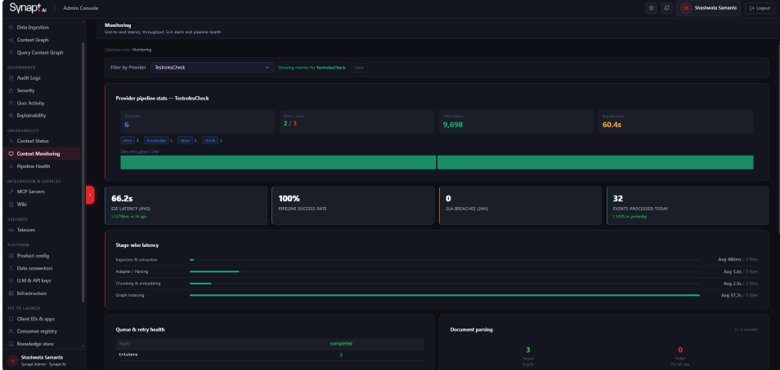
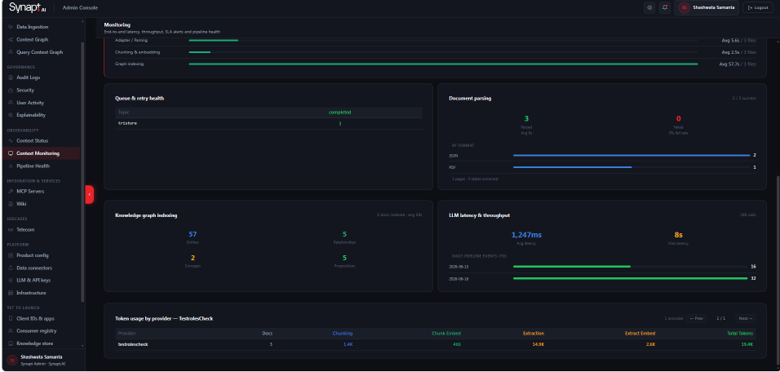
  • Observability — Platform health and performance tools. Contains Status (live service health), Monitoring (metrics and usage), and Pipeline Health (ingestion pipeline diagnostics).

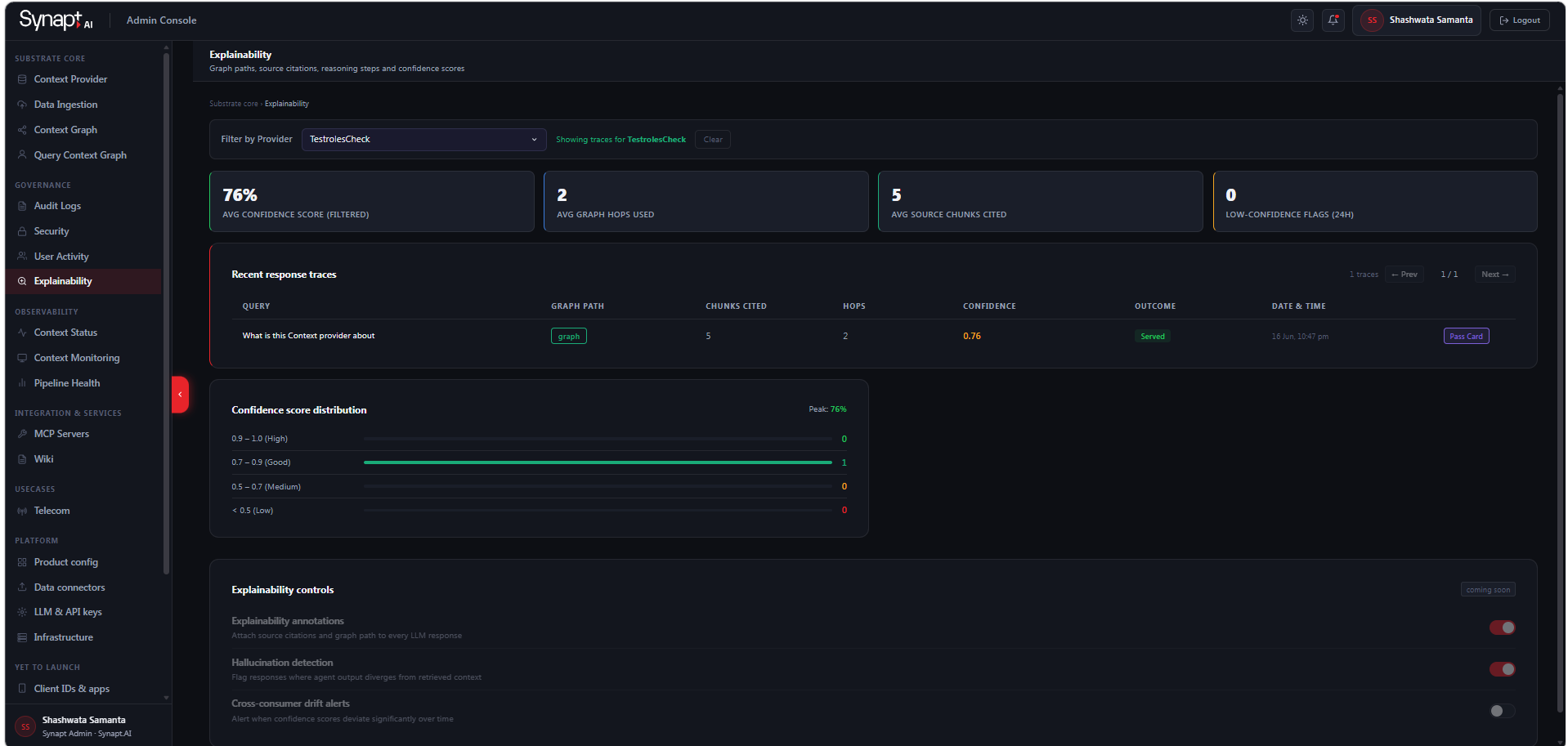
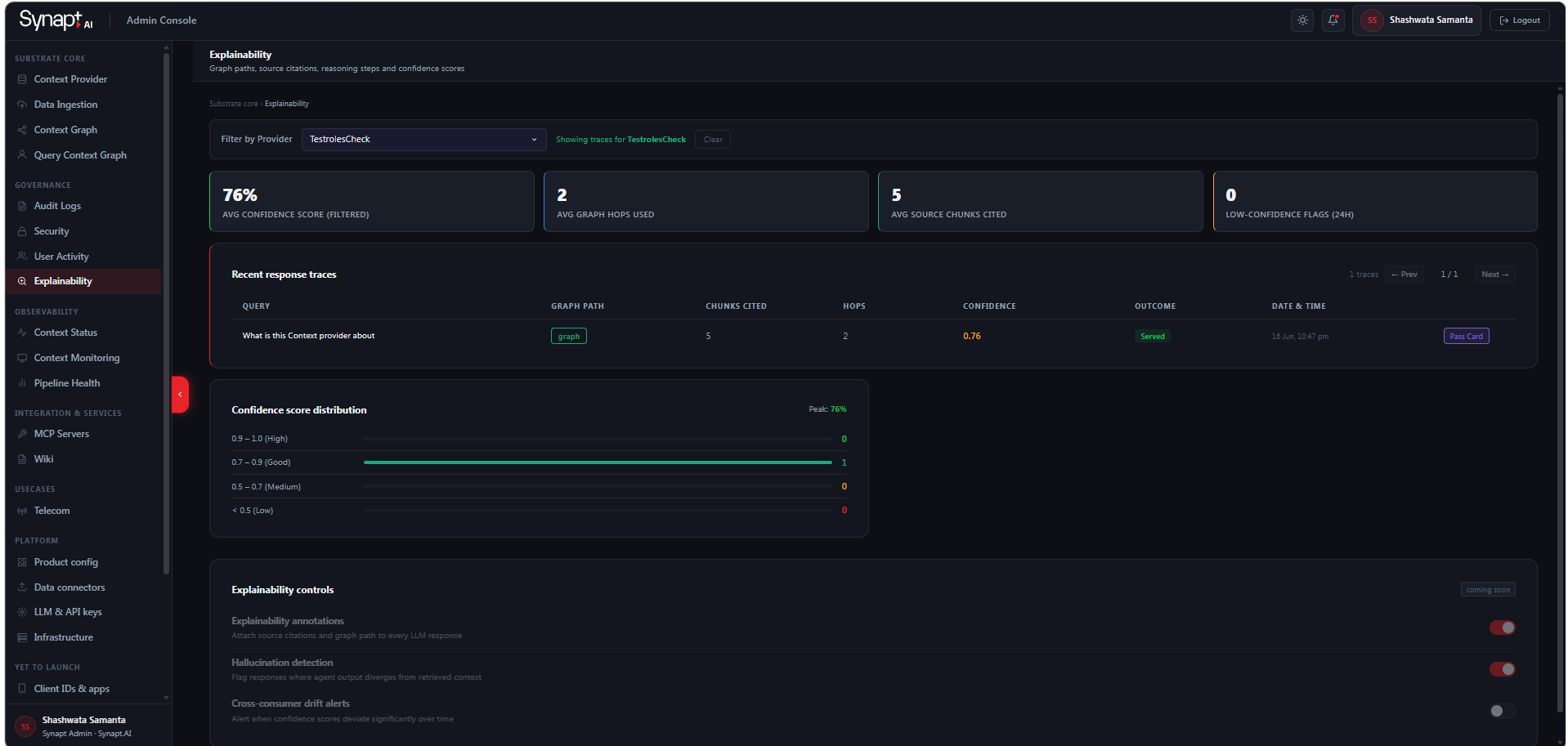
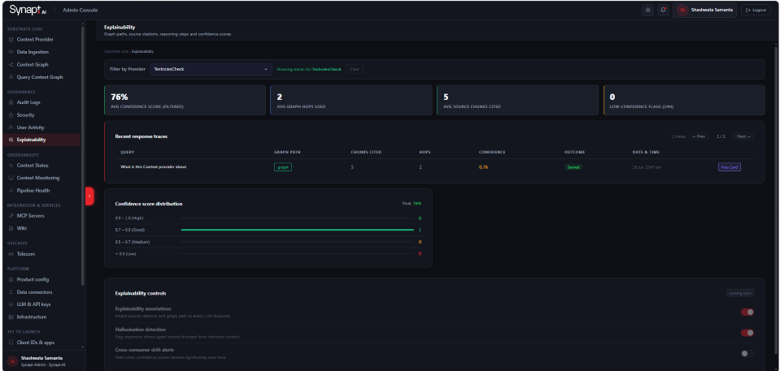
  • Governance — Compliance and transparency tools. Contains Audit Logs (full activity history), Security (access control), and Explainability (AI reasoning transparency).

3. Creating a Context Provider

3.1 What is a Context Provider?

A Context Provider is the first thing you create in Synapt. It defines a scoped knowledge domain that your agents will draw from. Before any data is ingested or any agent is queried, you need at least one Context Provider.

Think of a Context Provider as a container that holds everything an agent needs to know about a specific area of your business. It defines the boundary of what the agent can see, what knowledge it has access to, what procedures it can follow, and what data relationships it can traverse.

When naming a Context Provider, the slug — the unique identifier used internally and in API calls — cannot be changed after creation, so it should be chosen carefully. Use lowercase with underscores or hyphens, such as at_t_sop or circuit_intelligence, and avoid spaces, special characters, or auto-generated strings. The display name should be descriptive but concise, ideally three to six words that immediately communicate the domain — for example AT&T Standard Operating Procedures rather than Test or New Provider. If you are managing multiple providers for the same client or business unit, prefix names consistently so they group naturally in the provider list. Names like test, beta, or experiment should be avoided in production as they are difficult to identify and are often left active after their purpose has passed.

A Context Provider works best when it has a clear and consistent scope. Each provider should represent a single coherent knowledge domain — all documents related to a client’s standard operating procedures, or all technical specifications for a product line — rather than a mix of unrelated content, which reduces retrieval accuracy. If your team works with both structured data like tickets and unstructured documents like policy guides, these are better maintained as separate providers so ingestion pipelines stay clean and access can be granted independently. At the same time, avoid creating providers that are too narrow — one per document or topic fragment weakens the knowledge graph and limits the agent’s ability to make meaningful connections. A provider should contain enough related content to represent a full process, product area, or client knowledge base. Providers that are no longer actively used should be disabled rather than left running, to prevent agents from drawing from outdated knowledge.

3.2 When to Create a New Context Provider

The decision to create a new Context Provider or reuse an existing one comes down to whether the knowledge you are adding belongs to the same domain, serves the same audience, and should be retrievable together. If the answer to all three is yes, adding to an existing provider is usually the right choice. If any of these differ significantly, a new provider is warranted.

Scenario #1 –Different business domain
Create a new Context Provider when you are working with a distinctly different business domain or subject area. A team onboarding knowledge about network infrastructure, for example, should not share a provider with one managing HR policies — even if both belong to the same organisation. The agent’s retrieval quality depends on the coherence of the knowledge it draws from, and mixing unrelated domains forces it to work across noise. Similarly, if you are onboarding a new client, a new department, or a new product line, start a new provider rather than appending to an existing one that covers a different scope.
Scenario #2 –Different access boundaries
Create a new provider when access boundaries differ. Because permissions are managed at the provider level, any time two groups of users need different visibility into knowledge, separate providers give you clean control. For example, a provider for internal engineering runbooks should be separate from one containing client-facing documentation, even if both cover the same product — the former may be restricted to technical staff while the latter is broadly accessible.
Scenario #3 – Different data type
Create a new provider when the data type or workflow is fundamentally different. Ticket resolution data, standard operating procedures, technical API documentation, and audio transcripts from support calls each have different ingestion characteristics and serve different query patterns. Keeping them in separate providers — for example att_tickets, att_sop, and att_api_docs — makes pipelines easier to manage and allows each provider to be updated, paused, or handed off independently.
Scenario #4 -Reuse
Reuse an existing provider when you are adding more content of the same type to the same domain. If a provider already holds your organisation’s HR policies and you are uploading the updated version of a policy document, that belongs in the same provider. Likewise, if a provider covers a client’s knowledge base and you are ingesting a new batch of their documents from the same subject area, there is no reason to fragment it across multiple providers.

As a general rule of thumb — one client, one department, and one subject area is a reasonable boundary for a single provider. A financial services firm, for instance, might maintain separate providers for compliance_policies, product_documentation, client_onboarding_guides, and support_procedures, each scoped clearly enough that any agent querying it knows exactly what kind of knowledge it is drawing from.

3.3 Step-by-Step: Create a Context Provider

Only users with the CP Admin role can create a Context Provider. Once created, the CP Admin can grant access to CP Contributors (ingestors) to begin uploading documents into it.

From the left sidebar, go to Substrate Core → Context Providers. This is your default landing page after login. In the top right corner of the page, click the + Create Provider button.

The creation form opens at Step 1 — Provider Identity. Complete the following fields:

  • Provider Name is the display name for your provider as it will appear across the platform. Use a clear, descriptive name that reflects the knowledge domain — for example, IT Help Desk or AT&T Standard Operating Procedures.

  • ID (Slug ) is automatically generated from the provider name as you type. This is the unique identifier used internally and in API calls. Review it before saving — it cannot be changed after the provider is created.

  • Description is a short summary of what context this provider exposes. Write this as a plain-language explanation of what the agent will know when drawing from this provider — for example, Covers all IT support procedures and troubleshooting guides for internal staff.

  • Extraction Mode controls how the platform processes and extracts knowledge from ingested documents. The default is Fast, which is suitable for most use cases. Additional modes will be available in an upcoming release.

  • Entity Types defines the categories of named entities the platform should identify and extract from your documents — for example, Product, Person, Organisation, or Issue Type. Click + Add value to add values under a title, and use the + button at the top right of the section to add additional entity type groups.

  • Relationship Types defines the types of connections the platform should identify between entities — for example, Resolves, Belongs To, or Reports To. These are configured the same way as Entity Types.

Once all fields are filled, click Create to save the provider. It will appear in your Context Providers list with a Ready status once initialised.

After the provider is created, the CP Admin can grant access to CP Contributors, allowing them to begin ingesting documents into the provider. Access management will be available through the provider’s settings panel in the upcoming release.

3.4 Context Provider Setting

Each Context Provider has a set of configurable settings accessible from the provider card. From the Context Providers list, each card displays action buttons — Open to enter the provider, View for a read-only summary, Edit to modify the provider’s identity and configuration, and Delete to remove it.

Access control is managed under TheSecurity tab of each provider. The Context Provider Access panel shows all users and groups currently granted access. To grant access to a new user, click + Add Access, select the user by email, and assignRead, Write, and Update permissions independently. Once configured, click Grant Access to apply.Isolation Rules

Isolation rules define the access boundary of a Context Provider — controlling whether it is visible to all authenticated users within the organisation or restricted to explicitly granted users only. These are configured under the Security tab alongside access permissions.

Each Context Provider can be linked to one or more agents, defining which knowledge domain the agent draws from when responding to queries. Linked agents are configured from within the provider settings, allowing you to control exactly which agents have access to a given provider’s knowledge graph.

3.5 Managing Multiple Context Providers

From the sidebar, navigate to Substrate Core → Context Providers. All providers you have access to are displayed as cards, each showing the provider name, status badge, key metrics (Docs, Nodes, Edges, Chunks, Entities, Concepts, Propositions), and the created and last ingested dates. To see a read-only summary of a specific provider without entering it, click the View button on its card.

To update a provider’s name, description, extraction mode, entity types, or relationship types, click the Edit button on the provider card. Make your changes in the form and save. Only CP Admins and above can edit a provider.

CP Admins can archive a provider by clicking Delete on the provider card. This performs a soft delete — the provider is deactivated and removed from active use but is not permanently destroyed. Archived providers are no longer accessible to users or agents and will not appear in query results. The data is retained and can be restored by a Synapt Admin if needed.

Permanent deletion can only be performed by a Synapt Admin. This action is irreversible — all documents, nodes, edges, entities, and knowledge graph data associated with the provider are permanently removed. Hard delete should only be used when the provider and all its data are no longer needed under any circumstances.

Each agent is linked to a single Context Provider and queries exclusively from that provider’s knowledge base. Cross-provider querying is not supported — if different knowledge domains are required, separate agents should be configured for each provider.

4. Ingesting Data

4.1 What Can Be Ingested (repeated question)

4.2 Types of Content

Knowledge documents are PDF and TXT files that contain company information — internal documentation, product knowledge, business context, case studies, narratives, and similar content. When ingested into a Context Provider, these documents are chunked into smaller segments, processed through the extraction pipeline, and stored in the Knowledge Store. The platform identifies entities, concepts, and relationships within the content and uses them to build the provider’s knowledge graph, making the information retrievable by agents during queries.

Procedures and Standard Operating Procedures are step-based documents that define how a task or process should be carried out. Unlike knowledge documents, SOPs are not chunked during ingestion. They are fed directly into Neo4j as complete, structured entries, preserving the integrity and sequence of the steps. This ensures that when an agent retrieves a procedure, it receives the full set of instructions in the correct order rather than fragmented chunks. For best results, SOPs should be formatted with clearly defined sequential steps so the platform can correctly identify and store them as procedural content.

Structural data includes tables, CSV files, database schemas, API definitions, and entity relationship files. This type of content feeds directly into the Context Graph, where the platform maps the relationships and structures within the data. Rather than being treated as readable text, structural data is processed as relational information, allowing the knowledge graph to represent how data entities connect to one another and making those connections available to agents for structured reasoning and traversal.

4.3 Step-by-Step: Ingest Documents

From the left sidebar, go to Substrate Core → Ingest.

Choose the file type and format you want to ingest. All supported file formats are available for selection. Refer to the Supported Data Formats section for the full list of accepted types.

Choose the Context Provider you want to ingest the document into. The dropdown will only show providers you have been granted access to. If a provider you expect to see is missing, contact your CP Admin to request access.

Upload your file and start the ingestion process. The document will be passed through the ingestion pipeline for extraction and processing.

Wait for the ingestion pipeline to complete. You can track progress in real time by checking the event logs at the bottom of the page. Once processing is finished, the extracted entities will also appear at the bottom, giving you a view of what the platform identified and stored from the document.

4.4 Ingestion via Data Connectors

Insert how to connect to external data sources, configuration steps, authentication, scheduling.

Connector Data Source
File Direct file upload
URL Any HTTP/HTTPS URL
Web Scraper Static HTML web pages
SharePoint Microsoft SharePoint
Jira Atlassian Jira Cloud
Confluence Atlassian Confluence Cloud
CRM Salesforce
Database PostgreSQL / MySQL / MongoDB
REST API Any HTTP REST endpoint

Navigate to Substrate Core → Ingest and select the connector type that matches your external source. Each connector type displays its own configuration form with the required and optional fields for that source. Fill in the connection details — endpoint URL, credentials, or authentication tokens as applicable — and select the Context Provider you want to ingest into. All credentials are encrypted before storage and are never written to logs.

4.5 Ingestion Status and Error Handling

Once a document or connector ingestion is submitted, the Context Provider reflects the current state of processing through a status badge on its card.

The three statuses are

  • Ready — the provider is active and all ingestion has completed successfully

  • Ingesting — the pipeline is actively processing a submitted document or connector job

  • Error — one or more ingestion jobs have failed during processing

Every ingestion job enters a processing queue when submitted. If the job is not picked up and processed within one hour, it is automatically moved to the Dead Letter Queue (DLQ). This can happen during periods of high pipeline load or if a processing error occurs before the job is handled.

There is no automatic retry for jobs that reach the DLQ. If an ingestion fails or times out, you will need to resubmit the full ingestion request from the Ingest page — reselecting the file or connector, the format, and the target Context Provider. Before resubmitting, check the event logs for any error details that may indicate whether the issue was with the file format, the connector configuration, or the pipeline itself, and resolve those before attempting again.

4.6 Updating and Re-ingesting Data(still in canary, not yet deployed)

Insert how to update existing knowledge, versioning on re-ingestion, freshness timestamp updates.

5. Knowledge Graph

5.1 Understanding the Knowledge Graph

After data is ingested into a Context Provider, the platform automatically creates a knowledge graph. The ingestion process extracts entities from your documents and maps the relationships between them. A grounding step verifies each entity and relationship against the source material before it enters the graph, ensuring that the structured context agents reason over is constrained to what was actually confirmed in your data.

The graph is built through a five-stage pipeline that runs automatically in the background from the moment a document is submitted. The document is first normalised and parsed to preserve its structure — section hierarchy, tables, and reading order are all retained so that downstream extraction has proper context. The parsed content is then split into semantic chunks, each of which is enriched with LLM-generated metadata and converted into a vector embedding for semantic search.

In the fourth stage, the Knowledge Service processes each chunk and extracts four types of structured knowledge. Entities are named things in your content — people, systems, policies, processes, and more — classified across over eighty entity types. Relationships are the connections between those entities, grounded back to the source chunks to prevent hallucinated links. Concepts are the broader ideas and themes the platform identifies within the content. Propositions are atomic, verifiable statements in subject–predicate–object form — for example, Ticket Resolution Policy governs the AT&T support workflow — giving the agent a natural-language layer of factual statements to reason from. Across all chunks, extracted entities are deduplicated and canonicalized so the same real-world thing is never represented twice in the graph under different names.

The extraction behaviour is shaped by the Extraction Mode you select when creating the Context Provider. Fast is the default and suits most use cases. Balanced applies more careful extraction with fewer false positives. Precise is the most conservative mode, minimising noise at the cost of some recall. Comprehensive maximises extraction coverage and is suited to content-dense domains where recall matters more than precision.

In the final stage, all extracted entities, relationships, concepts, and propositions are persisted to the knowledge graph in Neo4j, while vector embeddings are stored in Milvus. This hybrid graph-vector store is what enables agents to perform both semantic similarity search and structured graph traversal when answering queries from within the provider.

5.2 Navigating the Graph Visualisation
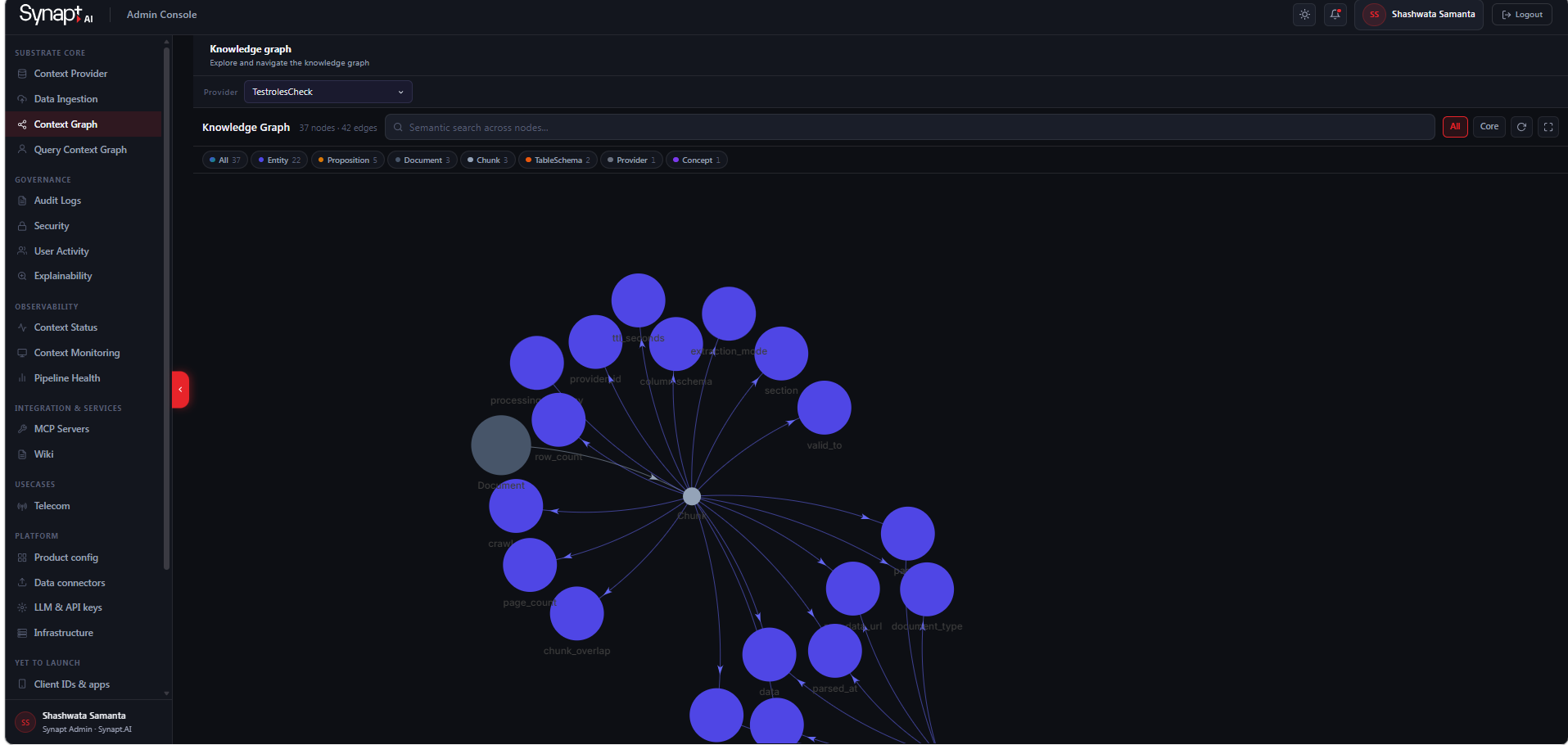
From the left sidebar, navigate to Substrate Core → Knowledge Graph. At the top of the page, use the Provider dropdown to select the Context Provider whose knowledge graph you want to explore. The graph canvas loads automatically and displays a summary of the total nodes and edges present in the selected provider — for example, 40 nodes · 0 edges.

Use your mouse scroll wheel to zoom in and out on the graph canvas. Click and drag anywhere on the canvas to pan across the graph. Nodes reposition themselves dynamically as you navigate. To reset the view to fit all nodes on screen, use the expand icon in the top right corner of the canvas.

A row of filter tabs sits above the graph canvas. Click All to view every node in the graph together. Click Entity, Concept, Procedure, or Stop to isolate nodes of that type. For more granular filtering, use the coloured filter pills to the right — these let you toggle specific subtypes such as Propositions, Entities, Concepts, Chunks, Providers, and Documents on or off individually. The count shown on each pill indicates how many nodes of that type exist in the current provider.

The search bar at the top of the canvas reads Semantic search across nodes. Type any term to perform a semantic search across all nodes in the selected provider. Matching nodes are surfaced from across the graph regardless of their current position on screen.

Click any node on the canvas to select it. The right-hand panel opens automatically and displays the full detail for that node, including its type badge (Entity, Concept, Procedure, etc.), its name and description, and three summary counts — Connections, Edge Types, and Node Types. Below the summary, the Properties section shows the node’s extracted attributes — for an Entity node this includes entity type, confidence score, label, aliases, and a unique entity ID. The Connections section at the bottom lists what the node is linked to, including any source Chunks it was mentioned in.

5.3 Entity Types and Relationships

The knowledge graph is built from two fundamental building blocks: entities — the named objects and concepts extracted from your documents — and relationships — the directed, labelled connections between them. Both are drawn from a controlled vocabulary defined by the platform, which constrains the extraction model to a consistent, auditable taxonomy and prevents arbitrary or hallucinated labels from entering the graph.

The platform recognises 80+ entity types organised across 7 categories. Every node in the graph is assigned exactly one entity type at ingestion time, and that type is visible in the node detail panel as the entity_type property.

Category Representative Types
Organizational Person, Role, Team, Department, Organization, Stakeholder, User, Customer, Vendor, Partner
Business Product, Service, Contract, Agreement, Requirement, Objective, KPI, Project, Initiative
Technology System, Application, Microservice, Module, Library, Framework, API, APIEndpoint, Database, Container, Cluster
Software Engineering Function, Method, Job, Pipeline, Repository, Deployment, Configuration
Security & Governance Policy, Regulation, Compliance Control, Audit, Permission, Role Assignment
Domain Concepts Process, Workflow, Concept, Standard, Taxonomy, Ontology
Location & Time Region, Environment, Version, Release, Timestamp
Category Example Relationship Types
Organization works_for, reports_to, manages, belongs_to
Business owns, sponsors, contracts_with, depends_on
Process & Workflow triggers, follows, executes, produces
Technology deploys_to, integrates_with, implements, exposes
Data reads_from, writes_to, transforms, consumes
Security & Governance governs, authenticated_by, authorizes, audits
Software calls_function, inherits_from, imports, references
Time & Version created_on, updated_at, deprecated_by, supersedes

5.4 Confidence Scores on Knowledge

Every fact in the knowledge graph carries a confidence score (0.0–1.0) reflecting the extraction model’s certainty.

Score Range Meaning
0.90 – 1.0 High confidence. The fact is well-supported and can be acted on directly.
0.75 – 0.89 Moderate confidence. Reliable for most use cases.
0.65 – 0.74 Low-moderate confidence. Review is recommended before acting.
Below 0.65 Low confidence. Flagged for human review before being committed to the graph.
  • Extraction review threshold (default 0.65): Controls which facts are flagged before being written to the graph.

  • Entity resolution threshold (default 0.75): Governs when two similar entities are merged into a single canonical node.

5.5 Freshness and Data Lineage

Every piece of knowledge in the graph is stamped with a full provenance trail at ingestion. Each entity carries:

  • source_chunks — IDs of the specific text chunks from which the object was extracted

  • extraction_job_id — unique identifier of the pipeline run that produced the object

  • document_id — UUID of the source document at ingestion

Knowledge freshness is governed by a Time-to-Live (TTL) value set at ingestion. Once expired, nodes are removed and the knowledge is no longer surfaced in queries.

To trace a fact to its origin, click the entity node in the graph. The detail panel shows a Mentions section listing the source chunks linked to that entity. Clicking a mention opens the corresponding chunk, showing the exact passage of text and the source document name.

5.6 Editing and Managing Graph Content

The knowledge graph in Synapt.AI is built and maintained entirely through the ingestion pipeline. Individual nodes and relationships cannot be manually added or edited through the graph visualisation UI — all graph content originates from documents submitted through a Context Provider. This design ensures that every fact in the graph has a verifiable source, a confidence score, and a full provenance trail.

If a source document changes — for example, a policy is revised or an SOP is updated — the correct way to update the graph is to re-ingest the updated file through the same Context Provider. The pipeline uses a merge-and-update approach: nodes derived from the same document are updated in place, and new entities or relationships introduced in the revised version are added. This keeps the graph consistent with the latest version of your source content.

Content can be removed at the Context Provider level. Deleting a Context Provider triggers a cascading removal of all knowledge derived from it — every entity, relationship, concept, proposition, and chunk associated with that provider is purged from the graph and the vector store.

  • A cp_admin can soft-delete (archive) a Context Provider. Archived providers are disabled and their knowledge is no longer surfaced in queries, but the data is retained and can be restored if needed.

  • A synapt_admin can hard-delete a Context Provider permanently. This is irreversible and removes all associated graph nodes, vectors, and metadata.

There is no way to delete an individual node or relationship in isolation without removing the provider or re-ingesting the source document.

Entities, relationships, concepts, and propositions extracted with a confidence score below the configured threshold are held in a review queue before being written to the graph. A reviewer can validate or discard these items, giving human oversight over uncertain extractions without blocking the rest of the pipeline.

Every write, deletion, and provider lifecycle event is recorded in the platform’s audit log with the caller’s identity, timestamp, and action taken. This provides a complete chain of custody for all graph content — including what was removed, who removed it, and when.
6. Querying the Agent

6.1 How Agent Queries Work

When a query is submitted, the agent queries the Context Substrate rather than searching raw documents. The substrate returns confidence-scored facts from the Knowledge Store, traverses entity relationships in the Context Graph, and loads the relevant versioned procedure from the Procedure Store if the query requires an action. The agent then reasons over this governed context and produces a response with full traceability.

The query pipeline runs eight steps automatically each time a question is asked. The query text is first converted into a 768-dimensional embedding vector. That vector is used to perform a cosine similarity search against the Graph Node Index (GN) — a semantic index of every entity, concept, proposition, and procedure stored in the graph. Any node that scores above the anchor threshold (0.60) is selected as a starting point. From those anchor nodes, the platform performs a breadth-first traversal of the Context Graph in Neo4j, expanding up to two hops and collecting up to 100 nodes per entity type. This produces the reasoning subgraph — a focused slice of the knowledge graph that is directly relevant to the query.

In parallel, the same embedding is used to search the Knowledge Store (Milvus KS) for the most relevant document chunks, and the Procedure Store (Milvus PS) for any SOPs whose intent matches the query. If the question requires a procedural answer — such as how to complete a task — the relevant procedure steps are loaded and included in the context.

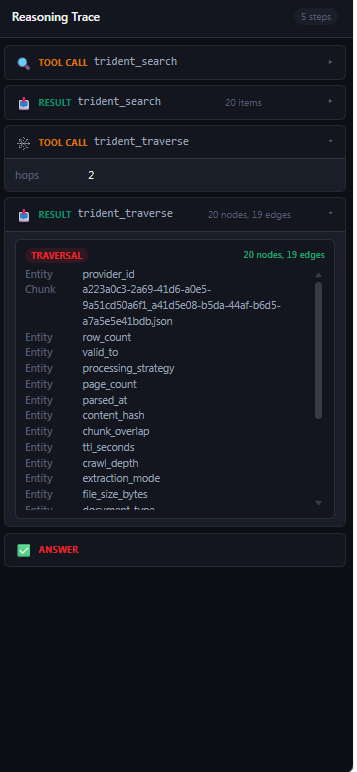
All three results — the reasoning subgraph, the top-K chunks, and any matched procedures — are assembled into a single governed context block and passed to the LLM reasoning layer. The model uses DSPy ChainOfThought to reason over this context before producing its answer, which means it generates an internal reasoning trace before committing to a response. The final output includes the answer, the reasoning subgraph that supported it, the source chunks cited, and confidence scores on the underlying facts — so every response is fully traceable back to the source documents that informed it.

6.2 Running a Test Query

The Query Agent is accessible directly from the Substrate Core and lets you ask natural language questions against the knowledge graph of any Context Provider you have access to.

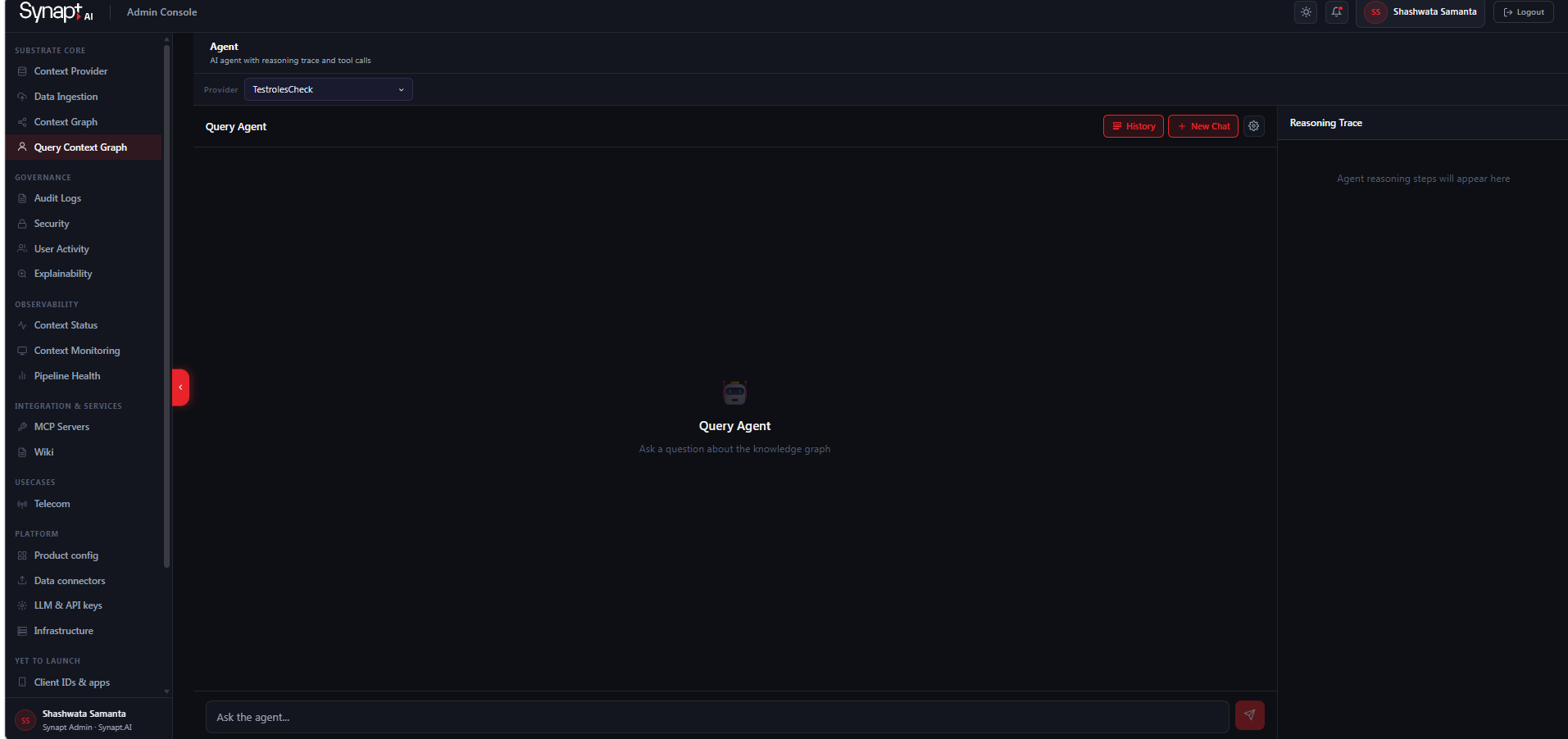
Step 1. In the left sidebar, navigate to Substrate Core → Agent.

Step 2. Use the Provider dropdown at the top of the page to select the Context Provider you want to query. The agent scopes all retrieval to that provider’s knowledge graph only.

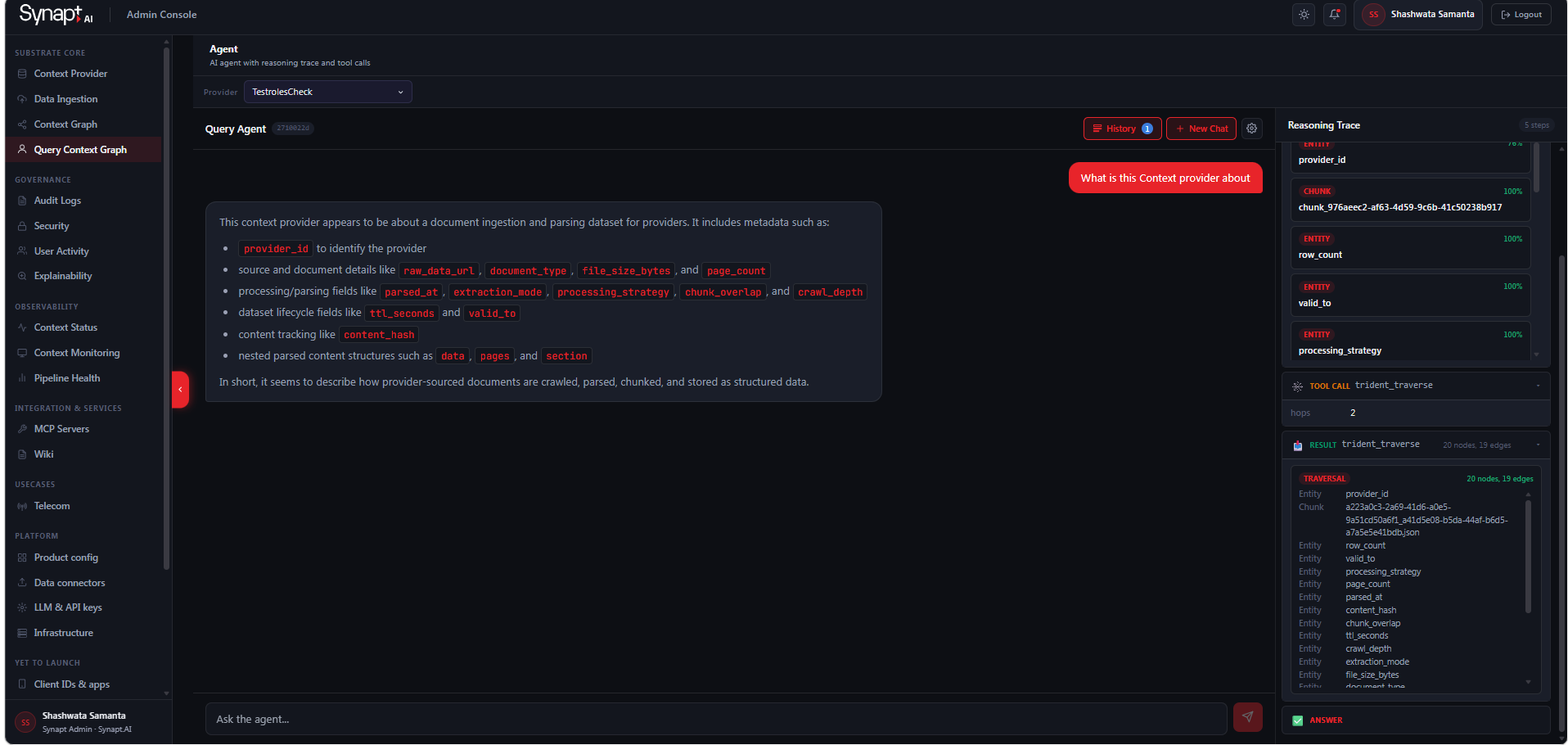
Step 3. Type your question into the Ask the agent… input at the bottom of the screen and press send.

Step 4. The agent runs the full query pipeline and returns its answer in the chat area. The Reasoning Trace panel on the right updates in real time, showing each step of the agent’s reasoning — which entities were anchored, which graph paths were traversed, and how the answer was assembled.

Use New Chat in the top right to start a fresh conversation, or History to review previous queries.

6.3 Query Configuration Options

The Query Agent exposes several parameters that control how it retrieves and reasons over your knowledge graph. These can be set per query from the Agent interface.

  • Context Provider selects which provider’s knowledge graph the agent queries against. Each provider is fully isolated — the agent only retrieves from the graph and vector store of the selected provider. This is the primary scoping control and must be set before submitting a query.

  • Graph Traversal Depth (graph_hops, default 2) controls how many relationships hops the agent expands outward from the semantic anchor nodes when building the reasoning subgraph. A depth of 2 means the agent retrieves direct connections and their neighbours. Increasing this value surfaces more context for complex queries at the cost of retrieving a broader, potentially noisier subgraph. The traversal is also bounded to a maximum of 100 nodes per entity type to keep context focused.

  • Top-K Chunks (top_k, default 5) sets how many document chunks are retrieved from the Knowledge Store to supplement the graph context. Raising this value includes more source passages in the agent’s context window, which helps with detailed or multi-part questions. The Procedure Store separately returns up to 3 matched SOPs regardless of this setting.

  • Confidence Threshold (GRAPH_ANCHOR_THRESHOLD, default 0.60) sets the minimum cosine similarity score a graph node must reach to be selected as a semantic anchor for BFS expansion. Nodes scoring below this are excluded from the reasoning subgraph. Raising this threshold makes the agent more selective — only highly relevant nodes seed the traversal — while lowering it casts a wider net at the risk of including loosely related context.

  • Model Selection determines which LLM is used for reasoning and answer generation. The platform runs on Azure OpenAI and supports runtime model switching — an administrator can update the active chat deployment (for example, moving from GPT-4 mini to GPT-4 Turbo) via a configuration update without restarting the service. The change takes effect immediately for all subsequent queries.

7. Understanding Agent Responses

7.1 Response Structure

7.2 Confidence Scores

Every agent response carries a confidence score that indicates how reliable the answer is. The score is calculated from retrieval strength, the number of corroborating sources, and whether the grounding step found supporting entities. When confidence falls below the configured threshold, the agent defers to a human rather than acting on uncertain knowledge.

7.3 Source Attribution and Data Lineage

7.4 Procedure Execution Display

7.5 Graph Traversal Path

7.6 Human-in-the-Loop Checkpoints

When an agent reaches a write action within a procedure, a human-in-the-loop checkpoint is triggered. The agent proposes the action, presents the supporting evidence, and waits for human approval before executing. This applies to any action that modifies data, creates records, sends communications, or triggers downstream processes.

8. Audit Trail and Decision Lineage

8.1 What Gets Logged

Every agent interaction generates a structured, immutable trace. The audit trail captures the complete decision chain: what was asked, which Context Provider was queried, which knowledge was retrieved and with what confidence scores, which knowledge was rejected, which procedure version was followed, which steps were executed, whether a human-in-the-loop checkpoint was triggered and the approval outcome, the final output, and the response time.

This is not a log that is reconstructed after the fact. It is generated automatically by the infrastructure on every query, for every agent, for every decision.

8.2 Viewing the Audit Trail

8.3 Decision Lineage: Replaying an Agent Decision

8.4 Exporting Audit Data

8.5 Compliance and Regulatory Use

The audit trail is designed to support EU AI Act conformity requirements, SOC 2 audit evidence, and internal compliance reviews. Every agent decision is explainable, every knowledge source is traceable, and every write action is governed by a human checkpoint.

9. Monitoring and Telemetry

9.1 Agent Ops Dashboard

Insert overview of the monitoring dashboard, metrics visible at a glance. Insert screenshot.

9.2 Context Confidence Monitoring

Insert how to monitor confidence score trends, alerting when scores drop, identifying stale knowledge.

9.3 Knowledge Freshness Monitoring

Insert freshness dashboard, alerts for stale content, re-ingestion triggers.

9.4 Query Performance Metrics

Insert response times, graph traversal latency, throughput, error rates.

9.5 Setting Up Alerts

Insert how to configure alerts for confidence drops, staleness, performance, errors. Notification channels.

10. Administration and Settings

10.1 User Management

10.2 Model Configuration (Not present)

10.3 Confidence Thresholds


10.4 Data Retention and Archival (In dev)

10.5 API Access (Not present)

10.6 Audit Logs:


10.7 Context Monitoring:

10.8 Overall Pipeline Health:

10.9 Infrastructure View:

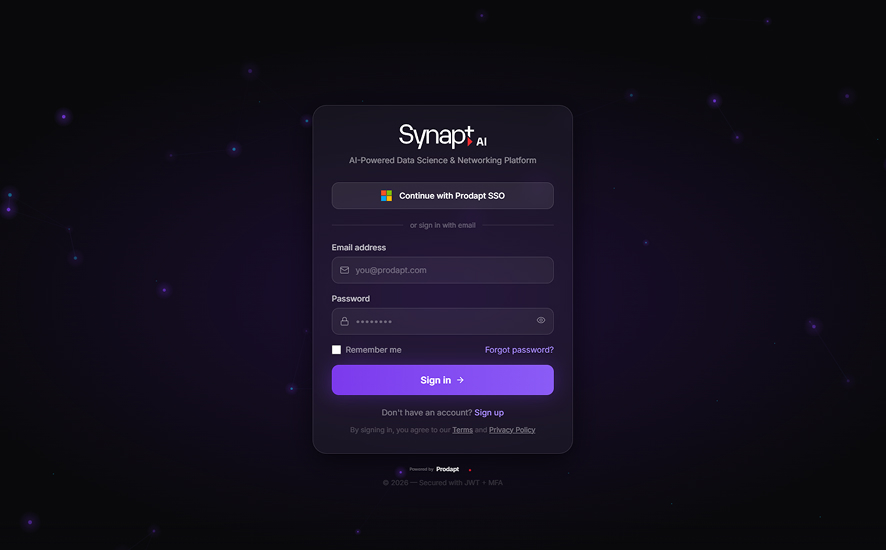
1. Login Page (Use User/Password or the SSO)

2. First Screen Shows all the Context Providers that you have access to:

3. Screen to create a New Context Provider

4. Success Screen for CP Creation (Allowed Only you have CP_admin role or Higher)

5. Upload the Document for ingestion (select the CP that you created) (Only allowed if you have cp_contributor or higher):

6. Knowledge Graph

7. Querying the Graph

11. Glossary

Context Substrate

The complete infrastructure layer comprising Knowledge Store, Procedure Store, and Context Graph. The core product that sits between enterprise data and AI agents.

Context Provider

A scoped knowledge domain within the substrate. Defines what context an agent can access, enforces isolation, and enables reuse across agents.

Knowledge Store

The component that stores enterprise facts with confidence scores, freshness timestamps, and full data lineage.

Procedure Store

Stores versioned SOPs that agents execute step by step with human-in-the-loop checkpoints on write actions.

Context Graph

The entity-relationship graph enabling multi-hop traversal across enterprise data in under 800 milliseconds.

Confidence Score

A reliability rating on every fact based on retrieval strength, corroboration count, and grounding quality.

Freshness Timestamp

The date a knowledge entry was last verified or ingested, indicating how current the information is.

Data Lineage

The full trace from a fact back to its source document, version, and ingestion pipeline.

Grounding

The verification step where entities and concepts are confirmed against source material before relationships are created in the graph.

Human-in-the-Loop (HITL)

A checkpoint that triggers on write actions, requiring human approval before the agent executes.

Domain SLM

Small Language Model trained on specific enterprise domain data. Synapt has 7 in-house SLMs, all self-hosted.

Behavioural Telemetry

Structured event logging on every agent interaction capturing the full reasoning chain, not just the final output.

Audit Trail

The immutable, automatically generated record of every agent decision including knowledge used, procedure followed, and actions taken.

Decision Lineage

The complete replayable trace of an agent decision from query to retrieval to procedure to action to outcome.

The context substrate
your agents have
been missing.

Join enterprises already running production agentic AI with Synapt. Trial access available now.